Your whole desk.
One key.
Snapping apps move one window. TradeStage opens and places every chart, DOM and app, on every screen.
Not a snapping app.
Snapping apps are good at one window. A trading day starts with ten of them, across three screens, and half aren't open yet.
You open each app and chart yourself.
Opens what's missing: your apps, and charts by ticker.
You move every window, one at a time.
Places every window on every screen at once.
Unplug a monitor and the desk falls apart.
Puts the windows back when the monitor returns.
One arrangement for every setup.
The laptop alone and the full desk each keep their own layouts.
Every morning, the same five minutes.
Every morning, ⌃⌥⌘2
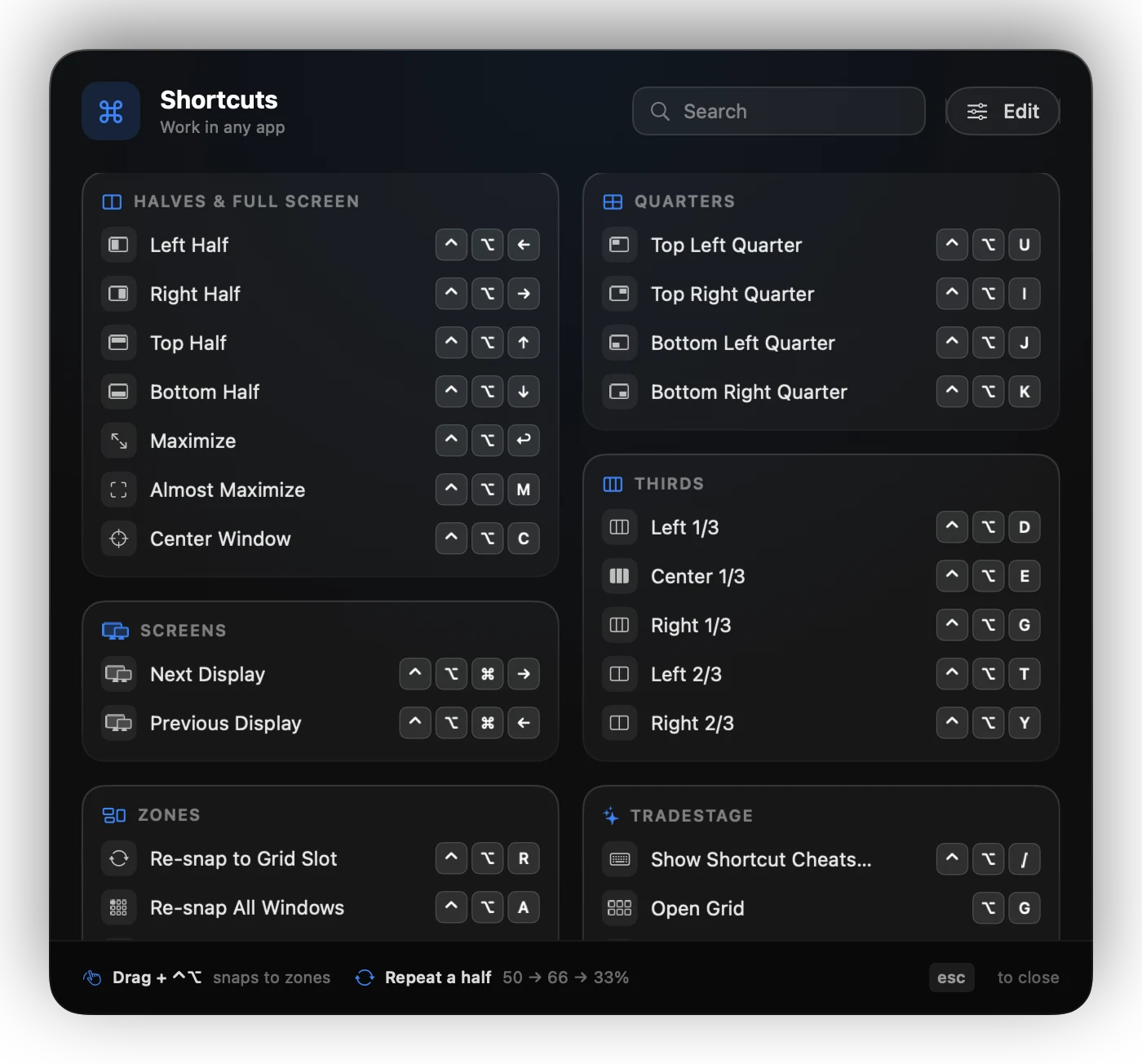
Snapping is in there too: halves, thirds and quarters from the keyboard, drag to a zone, and undo.
Your layouts wait in the wing.
Push the pointer into the edge of any screen and the shelf slides out. Each Quick Layout is a whole desk: which screens, which charts and apps, and exactly where. Click one, or press ⌃⌥⌘1, 2 or 3 from anywhere.
- Remembered per desk. The laptop on its own and the full three-monitor setup each keep their own 1, 2 and 3.
- One screen or all of them. A layout can cover a single monitor and leave the rest free.
- Opens what is missing. Apps and charts that aren't running yet are launched and put in place.
Your desk, under the pointer.
Hold right ⌥ on its own. Every screen and every zone you made appears right where the pointer is. Nudge onto a zone, on any monitor, and it lights on the real screen too. Let go, and the window is there.
- Inches, not monitors. The pointer barely moves, even for the far screen.
- Changed your mind? ⌃⌥Z undoes any move TradeStage made, a whole layout included.
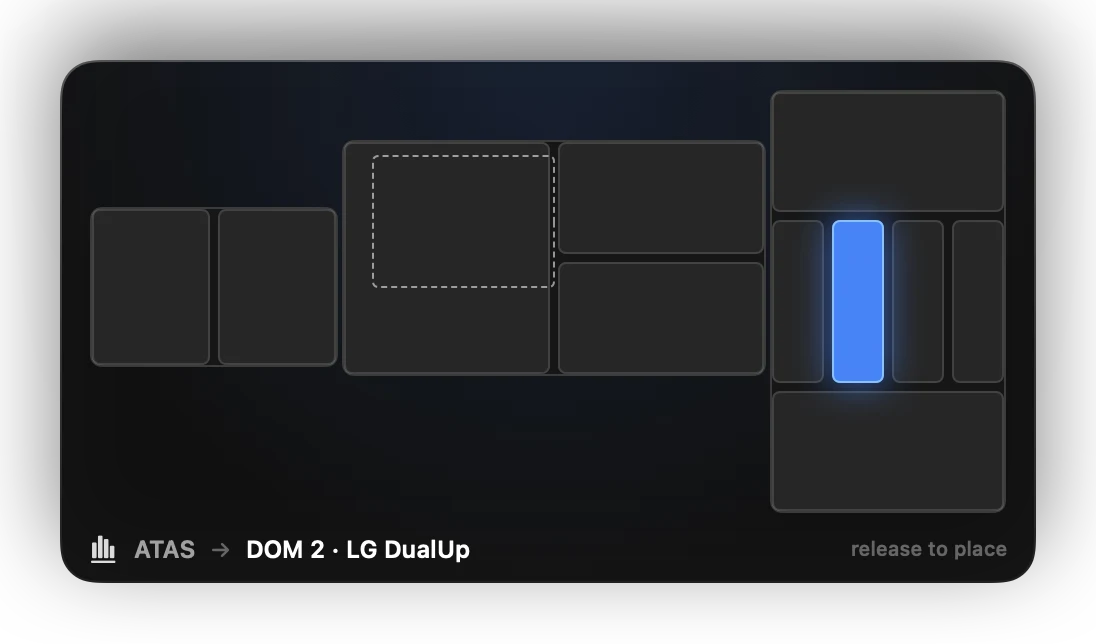
Any window to any zone.
Press ⌥G and the front window's screen appears in miniature with your zones on it. Point at a zone and the real screen shows where it will land. Click, and it's there. Another screen is one tap away in the same panel.
- Your zones or a plain grid. 2 × 2, 3 × 2, 4 × 2 or 3 × 3 per screen, or the zones you designed.
- Numbers work too. Press 1 to 9 to send the window to that zone.

Type a ticker. It opens where it belongs.
Press ⌥C, type NQ1!, pick a screen and a zone. A clean TradingView chart opens straight into place, with no tabs and no dragging.
- Pinned tickers. The symbols you open every day sit one click away.
- Span zones. Hold ⇧ and click to give one chart two zones.

Everything else on the desk.
All of it from the keyboard, and every shortcut can be changed.
- Snap while dragging
- Start dragging a window, hold ⌃⌥ and drop it in a zone. Add ⇧ for a half.
- Halves, thirds, quarters
- ⌃⌥← and friends. Press again to cycle 50, 66 and 33 percent.
- Next screen
- ⌃⌥⌘→ sends the window to the next monitor, same zone.
- The Studio
- Drag apps, charts and windows onto a map of your monitors to build a layout.
- Auto-heal
- Unplug a monitor and plug it back in. The windows go home.
- Undo
- ⌃⌥Z puts back the last move, or the last whole layout.
- Updates itself
- New versions arrive in the app, signed and checked, one click to install.
- The menu bar
- Your Quick Layouts and every tool, one click from the top of the screen.
Made for the apps on a trader's desk: TradingView on the web or desktop, ATAS, Bookmap, Sierra Chart, MetaTrader 5, and any other Mac window.
Try it before the bell.
The free trial opens at launch.
- For Mac, macOS 14 or later
- Needs Accessibility access to move windows
- Your layouts stay on your Mac
Questions.
Does TradeStage trade or connect to my broker?
No. It only arranges windows. It never sees your orders, accounts or market data.
Why does it ask for Accessibility access?
macOS only lets an app move and resize other apps' windows with your permission. You grant it once in System Settings, under Privacy & Security.
Which screens does it work with?
Any mix: the built-in display, external monitors, tall screens like the DualUp, and ultrawides. Each set of screens remembers its own Quick Layouts.
What happens when I unplug a monitor?
Your windows move to the screens that are left. When the monitor comes back, auto-heal puts them where they were.
Where do charts from the chart launcher open?
As clean TradingView chart windows in Google Chrome, placed in the zone you picked.
Why isn't it on the Mac App Store?
Apps there can't control other apps' windows the way TradeStage needs to, so it's sold directly here.